
Tuesday, February 13, 2018
The Economist explains why 5G may be both faster and slower than the previous wireless generation
The promise of 5G may not be met until the launch of 6G. Basically The Economist state the the coast to build 5G networks will cost a lot of money and consumers are not willing to pay for it...yet. Read the article here.

Wednesday, January 31, 2018
The SAMR Model, provided by Orange High School, Orange, NJ (USA)
Introduction to the SAMR Model
Dr. Ruben Puentedura developed the SAMR model as a way for teachers to evaluate how they are incorporating technology into their instructional practice. You can use SAMR to reflect upon how you are integrating technology into your classroom.
Is it an act of Substitution? Augmentation? Modification? Or Redefinition?

Video:
The Padagogy Wheel, using 21st Century tools, version 4.1
The Padagogy Wheel
Developed by
Allan Carrington
University of Adelaide
Standing on the Shoulders of Giants
This Taxonomy wheel (pdf.file) was first discovered on the
website of Paul Hopkin’s educational consultancy website mmiweb.org.uk That wheel was produced by Sharon Artley and was an adaption of Kathwohl and Anderson’s (2001)
adaption of Bloom (1956). The idea to further adapt it for the pedagogy
possibilities with mobile devices, in particular the iPad, I have to acknowledge
the creative work of Kathy Schrock on her website Bloomin’ Apps
Developed by
Allan Carrington
University of Adelaide
Standing on the Shoulders of Giants
This Taxonomy wheel (pdf.file) was first discovered on the
website of Paul Hopkin’s educational consultancy website mmiweb.org.uk That wheel was produced by Sharon Artley and was an adaption of Kathwohl and Anderson’s (2001)
adaption of Bloom (1956). The idea to further adapt it for the pedagogy
possibilities with mobile devices, in particular the iPad, I have to acknowledge
the creative work of Kathy Schrock on her website Bloomin’ Apps
Wednesday, November 29, 2017
Friday, November 3, 2017
How to use Voice Over on the iPad to read books off Bookshare.org's Web Reader.
So I guess I am a little slow on the draw. We create accounts on Bookshare.org for our students who need help with reading materials. On March 2, 2017 I posted an article that told how to use Bookshare.org's web reader. At that time it seemed as though you could only use the fully functioning web reader using a browser on a computer, but not on an iPad. On the computer, the web reader gave you a "play" option, on the iPad this function was not available because the browsers would not support it.
With this in mind, we would purchase and download the Voice Dream Reader App ($15) from the App store...then we became an 1:1 school and we started having more students that needed the Bookshare.org materials read to them on the iPad. I am sure we could purchase a license for Voice Dream Reader and push it out through our JAMF iPad management software but we do not have an exact number of students that need it and that number seems to increase every couple of weeks.
Finally I decided to sit down and investigate if there was any way to use the iPad without downloading the Voice Dream App. Here's is what I discovered.
I found that you have to use the Safari Browser...it will not work with Google Chrome...I guess Apple and Google do not play nice/
Let me just warn you that there are 2 ways to do this and here is my take...
With this in mind, we would purchase and download the Voice Dream Reader App ($15) from the App store...then we became an 1:1 school and we started having more students that needed the Bookshare.org materials read to them on the iPad. I am sure we could purchase a license for Voice Dream Reader and push it out through our JAMF iPad management software but we do not have an exact number of students that need it and that number seems to increase every couple of weeks.
Finally I decided to sit down and investigate if there was any way to use the iPad without downloading the Voice Dream App. Here's is what I discovered.
I found that you have to use the Safari Browser...it will not work with Google Chrome...I guess Apple and Google do not play nice/
Let me just warn you that there are 2 ways to do this and here is my take...
- I would login to Bookshare.org, find and open the book and THEN turn VoiceOver on the iPad.
- If you turn VoiceOver first and THEN login to Bookshare.org, just remember that you have to click once to select something (be it a link or even to type a letter) THEN double click it to enter. FYI-I did it this way first and it worked but my patience was severely tested.
- Go to https://www.bookshare.org/ look to the top right and click “Login”. Use the same username and passwords as they do in class.
- Look in the middle of the screen under your name and click on #1 – view your assigned books (reading list)
- Click on on your teacher's reading list (i.e. - Ms. Schaefer’s reading list)
- Find book in that list…go all the way to the right of the book you want and click READ NOW
Commands to move forward and back pages are at the top of the screen (a left triangle to move back page, a right triangle
Now set up Voice Over on the iPad.
- Go into settings
- General
- Accessibility
- Voice Over
- You may want to click on VoiceOver Practice first because once you turn VoiceOver on, the commands for the iPad change.
- You tap once to select and item
- Double-tap to activate the selected item
- Swipe three fingers to scroll. (it is a little confusing at first but you'll get the hang of it.)
- Turn VoiceOver by moving the toggle button to the right...it will turn green.
- Press the Home button once...the big button on the front of the iPad
- Click the Safari icon once to select it a black box should now surround the icon.
- Click the Safari icon twice to open it and get back to Bookshare.org.
- Use the triangles to find the page you want, REMEMBER you have to click once to select and TWICE to move a page. The icon to the left of the triangles (looks like a box with 3 lines with buttons at the end of them) allows you to open a Table of Contents.
- Click once to choose the selection you want to be read to you...a black box will surround the text and the iPad should start reading it.
Wednesday, October 4, 2017
The silent presenter in a join.me meeting.
I am doing a test run with a presenter for a PD day and we are using join.me meeting web browser interface for it. She can hear me but I can not hear her, be it on our: Macbook or Windows 10 laptop (hardwired or connected via Apple TV). When I run a test for an audio signal using the join.me interface I do hear the "air raid horn" sound effect on all devices but I still can not hear the presenter. I can hear the presenter on the MacBook alone but when connected to the TV or Apple TV I lose her audio. Then it hits me, maybe it is the browser?? I was using Google Chrome, so I decide to try IE and in the process it advises me to install the join.me client. I enter the meeting code et voila, I can hear her. Who knew?!? It is the simple things in life that make me happy.
What happens when your Macbook says it can not connect to your Apple TV.
You have the best plans for this next class, you are going to have them use Kahoot to go over the latest English terms...uno problemo...your MacBook keeps telling you that it can not connect to your Apple TV. You have checked your connections, you are on the same network and all that fun stuff still nothing. You call IT. They can connect with their iPhone and your iPad, so what gives??? It seems as though your Apple TV has updated itself to its latest software rendering unrecognizable by the MacBook because it is running an older iOS. We updated the MacBook to Sierra, NOT High Sierra, and everything started working again. If you have downloaded Sierra before, and do not want to update to High Sierra just yet, log-in to the App Store, click the "Purchased" tab and scroll down to find Sierra, download and install. Depending where you are it could take a while, but after the install your MacBook and Apple TV play nice again.
Monday, May 8, 2017
Tuesday, March 21, 2017
How Google Chromebooks conquered schools, originally published on Fox Business from the Associated Press.
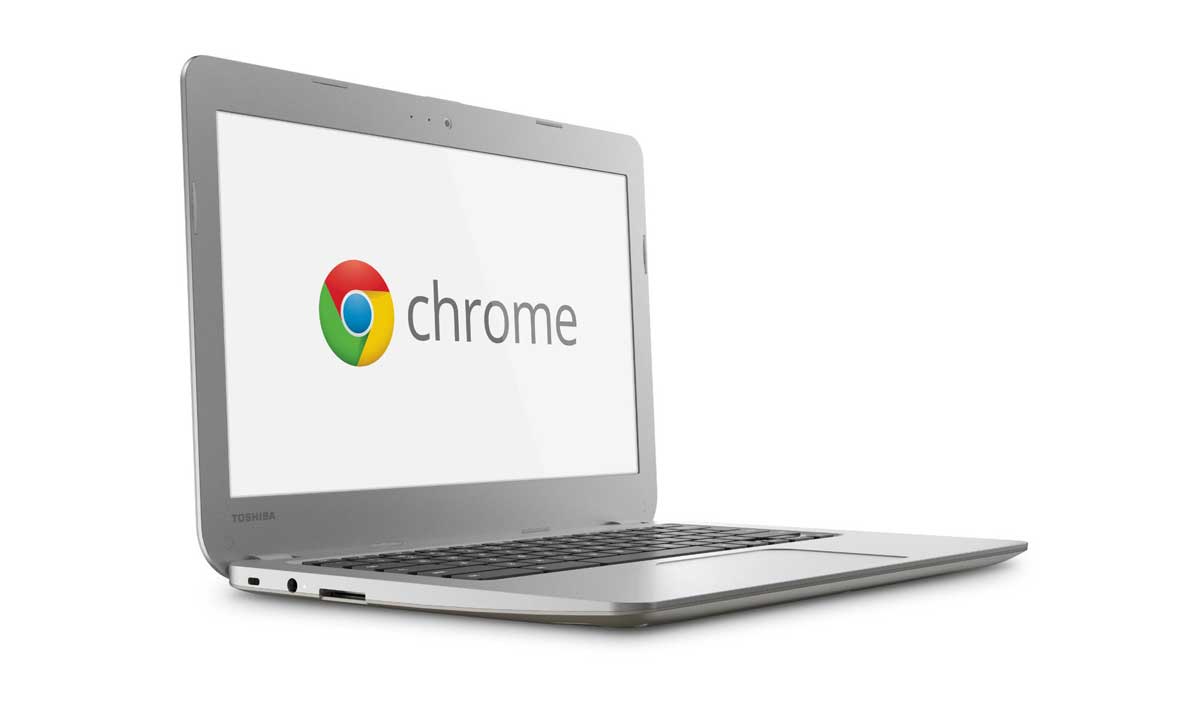
Good read on how the Ipad v. Chromebook battle is faring in k-12 education.
http://www.foxbusiness.com/features/2017/02/10/how-google-chromebooks-conquered-schools.html
Thursday, March 2, 2017
How to use Bookshare's web reader on a computer using a browser not an iPad.
- Go to https://www.bookshare.org/cms/ look to the top right and click “Login” and use the same username and passwords as they do in class.
- Look in the middle of the screen under your name and click on #1 – view your assigned books (reading list)
- Click on on your teacher's reading list (i.e. - Ms. Schaefer’s reading list)
- Find book in that list…go all the way to the right of the book you want and click READ NOW
- When it opens you can click where you want to start it to read and then click the SPEAKER icon in the top right. You can use the forward and backward arrow buttons to move through the pages.
Subscribe to:
Posts (Atom)