
Monday, May 8, 2017

Tuesday, March 21, 2017
How Google Chromebooks conquered schools, originally published on Fox Business from the Associated Press.
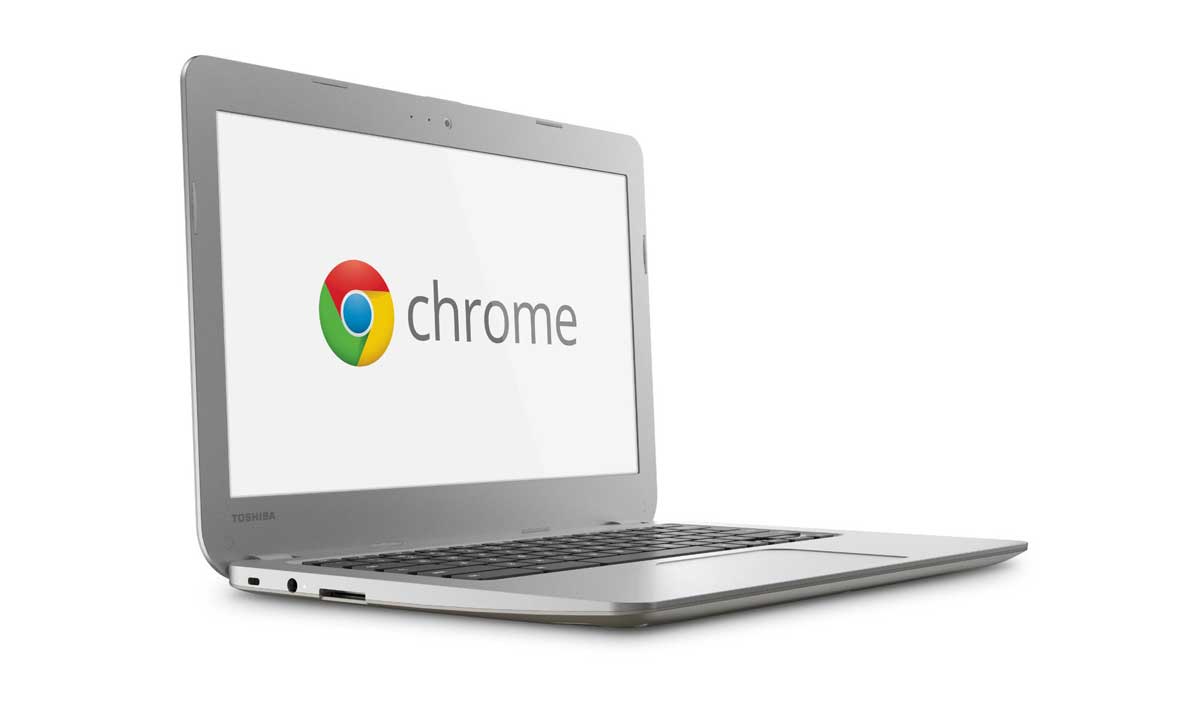
Good read on how the Ipad v. Chromebook battle is faring in k-12 education.
http://www.foxbusiness.com/features/2017/02/10/how-google-chromebooks-conquered-schools.html
Thursday, March 2, 2017
How to use Bookshare's web reader on a computer using a browser not an iPad.
- Go to https://www.bookshare.org/cms/ look to the top right and click “Login” and use the same username and passwords as they do in class.
- Look in the middle of the screen under your name and click on #1 – view your assigned books (reading list)
- Click on on your teacher's reading list (i.e. - Ms. Schaefer’s reading list)
- Find book in that list…go all the way to the right of the book you want and click READ NOW
- When it opens you can click where you want to start it to read and then click the SPEAKER icon in the top right. You can use the forward and backward arrow buttons to move through the pages.
Tuesday, January 31, 2017
What to do when you can not search your email folders in OWA (Outlook Web App - online Outllook web mail access)
Are you sensing a theme with the last couple of post?? Outlook/Microsoft Exchange Server 2010 has taken over my life. The other day my school lost power and our Exchange Server power down and we had to restart it, a couple of day later we noticed that we could not search in Outlook mail folders using the OWA (online web tool). We kept seeing the message “The action couldn’t be completed. Please try again.”
After much research, some instructing to run prepareAD and prepareSchema from the Exchange Server 2010 Service Pack 2 setup.exe...which I was putting off until the last possible moment. I tried restarting the Microsoft Exchange Server Indexer and Microsoft Search (Exchange) service with no luck at all, then I found came across this nugget of information.
Restart the following services in this order:
1. Microsoft Exchange Search Indexer
2. Microsoft Search (Exchange)
3. Microsoft Exchange Information Store
All I can say...worked like a charm!! Now we can search our mailboxes to our heart's content!
Many thanks to Clint Boessen of Perth, Australia!
After much research, some instructing to run prepareAD and prepareSchema from the Exchange Server 2010 Service Pack 2 setup.exe...which I was putting off until the last possible moment. I tried restarting the Microsoft Exchange Server Indexer and Microsoft Search (Exchange) service with no luck at all, then I found came across this nugget of information.
Restart the following services in this order:
1. Microsoft Exchange Search Indexer
2. Microsoft Search (Exchange)
3. Microsoft Exchange Information Store
All I can say...worked like a charm!! Now we can search our mailboxes to our heart's content!
Many thanks to Clint Boessen of Perth, Australia!
Wednesday, January 25, 2017
Managing a Multi-Mailbox Search in Exchange Server 2010.
First and foremost, I have have to acknowledge (and thank!!) Anderson Patricio of MSExchange.org for the information that he provide that help me deal with a very difficult situation.
I have just started working with our Exchange server and GSuite Administrator functions. Administration came to me and asked if I could search all of our Exchange mailboxes for a certain search term (name) in which they have been asked to provide documentation about. I had an idea that it could be done but I had no idea how or where to start. Patricio's article on Managing a Multi-Mailbox Search in Exchange Server 2010 explains it all. Be warned though...it has seven sections to it. There were some instances where I was caught mumbling "What?!?" but I was able pull it off.
After successfully performing a Multi-Mailbox Search in Exchange and being able to view the results, the next question I was asked was "how can I save it in a file format?" When I first did the search I forwarded the results (emails) but the organization I was working with said that by forwarding them it misidentified the original senders/receivers.
Being in the OWA (Outlook Wed App), there was no menu to "File, Save As", so I had to use an installed version of Outlook (on a PC not a Mac). I setup the account that had the rights to the search results in Outlook, launched it and voila...NOTHING!! I saw my mailboxes but not of the folders that contained my search results. I googled "how to view my Discovery Search Mailboxes" and found this: "Use Outlook to Open a Discovery Mailbox".
I used the following instructions and voila, I saw everything, now I could export them as a file and was exactly what I looking for.
Open the discovery mailbox from your Outlook profile
In a nutshell you have to give an account Admin rights in Discovery Management to perform the query, once done Exchange sends the results (the emails) to a designated mailbox. I could try to explain it better, but I'm sure I would only make things worse.
So for those needing a global search of your Outlook mailboxes, Mr. Patricio has obliged us. It may not rocket science, but I think it is a close second.
I have just started working with our Exchange server and GSuite Administrator functions. Administration came to me and asked if I could search all of our Exchange mailboxes for a certain search term (name) in which they have been asked to provide documentation about. I had an idea that it could be done but I had no idea how or where to start. Patricio's article on Managing a Multi-Mailbox Search in Exchange Server 2010 explains it all. Be warned though...it has seven sections to it. There were some instances where I was caught mumbling "What?!?" but I was able pull it off.
After successfully performing a Multi-Mailbox Search in Exchange and being able to view the results, the next question I was asked was "how can I save it in a file format?" When I first did the search I forwarded the results (emails) but the organization I was working with said that by forwarding them it misidentified the original senders/receivers.
Being in the OWA (Outlook Wed App), there was no menu to "File, Save As", so I had to use an installed version of Outlook (on a PC not a Mac). I setup the account that had the rights to the search results in Outlook, launched it and voila...NOTHING!! I saw my mailboxes but not of the folders that contained my search results. I googled "how to view my Discovery Search Mailboxes" and found this: "Use Outlook to Open a Discovery Mailbox".
I used the following instructions and voila, I saw everything, now I could export them as a file and was exactly what I looking for.
Open the discovery mailbox from your Outlook profile
To display the contents of the discovery mailbox in the folders list in the Navigation pane when you're connected to your cloud-based mailbox with Outlook:
- In Control Panel, click Mail, and then in the Mail Setup - Outlook window, click E-mail Accounts.
Not seeing Mail? Mail appears in different Control Panel locations depending on the version of the Windows operating system, the view of Control Panel selected, and whether a 32- or 64-bit operating system or version of Outlook 2010 is installed. The easiest way to locate Mail is to open Control Panel, and then in the Search box at the top of window, type Mail. In Control Panel for Windows XP, type Mail in the Address box. - On the Account Settings page, on the E-mail tab, select your account, and then click Change.
- On the Server Settings page, click More Settings.
- On the Microsoft Exchange page, click the Advanced tab, and then click Add.
- On the Add Mailbox page, type Discovery Search Mailbox and then click OK.
- Click Apply, and then click OK.
- On the Server Settings page, click Next, and then click Finish.
- On the Account Settings page, click Close, and then close the Mail Setup - Outlook window.
- Start Outlook and in the Navigation pane, click Discovery Search Mailbox.
In a nutshell you have to give an account Admin rights in Discovery Management to perform the query, once done Exchange sends the results (the emails) to a designated mailbox. I could try to explain it better, but I'm sure I would only make things worse.
So for those needing a global search of your Outlook mailboxes, Mr. Patricio has obliged us. It may not rocket science, but I think it is a close second.
Friday, January 20, 2017
How to download Rediker's ParentPlus App to use on your iPad.
I know what you are saying...how tough can it be to download an App from the App Store? Well let me tell you...it depends what device (iPhone or iPad) you are on while attempting to download. If you are on a iPhone in the App Store, it will find it to download. If you are on an iPad, it will not appear. Below are the instructions on how to download it to your iPad.
Tuesday, January 17, 2017
Friday, January 13, 2017
How to use the Voice Dream app on the iPad to access materials from Bookshare.org
Disclaimer...Voice Dream is not a free app.
BEFORE you can download the materials to the iPad you must have your Bookshare.org administrator download any materials to that student's Bookshare account either individualy or to a reading list.
Click here for the directions.
BEFORE you can download the materials to the iPad you must have your Bookshare.org administrator download any materials to that student's Bookshare account either individualy or to a reading list.
Click here for the directions.
Monday, October 31, 2016
Not able to print from Rediker's Admin Plus?
I ran across this issue last week when we replaced our SPED department's Windows 7 desktops with Windows 10 desktops. They had no issue printing from Windows 7 but lo and behold, they could not print from Windows 10 or from my Windows 8 desktop.
Before I started my quest, we could print our reports but we had to save them as a .pdf file then print them from the software that handles the .pdf. It worked but it was a pain.
When you tried to print a report the "printer" window opened up and the default printer was named, "double-click to print". We doubled clicked and nothing happen, no document printing, no error messages...NADA. My understanding is that Admin Plus (AP)is let's just say...very DOSy. DOS as in the computer language that you used in the Command Prompt in Windows.
We all print via IP printers/copiers (Konica BizHubs). My first thought, since AP is DOSy, all I had to do was associated our BizHubs IP address with the printer port LPT1. So I went into DOS (am I dating myself?)...I mean Command Prompt, used the "net use" command and associated the IP address with LPT1. Still nothing. Next I shared the printer on the desktop, using it as a printer server. I once again used "net use" command, this time to associate LPT1 with the shared name of the printer (i.e. \\paul\spedbizhub). The command took but still nothing. When I clicked on the printer "double-click to print", I noticed it also read "UniPrint Universal Client". I googled it and found the company and their print clients (software). I downloaded the appropriate client, installed it. On the reboot if you look at the system tray in Windows (lower right-hand side near the time) you now saw a blue UP "logo", that is the UniPrint client. Using that, you can set a default printer and some other helpful tasks. I went back into AP, selected a report and VOILA it worked like a charm!!
The skinny of this was that we needed an updated UniPrint Client and once we did that, everything work.
Before I started my quest, we could print our reports but we had to save them as a .pdf file then print them from the software that handles the .pdf. It worked but it was a pain.
When you tried to print a report the "printer" window opened up and the default printer was named, "double-click to print". We doubled clicked and nothing happen, no document printing, no error messages...NADA. My understanding is that Admin Plus (AP)is let's just say...very DOSy. DOS as in the computer language that you used in the Command Prompt in Windows.
We all print via IP printers/copiers (Konica BizHubs). My first thought, since AP is DOSy, all I had to do was associated our BizHubs IP address with the printer port LPT1. So I went into DOS (am I dating myself?)...I mean Command Prompt, used the "net use" command and associated the IP address with LPT1. Still nothing. Next I shared the printer on the desktop, using it as a printer server. I once again used "net use" command, this time to associate LPT1 with the shared name of the printer (i.e. \\paul\spedbizhub). The command took but still nothing. When I clicked on the printer "double-click to print", I noticed it also read "UniPrint Universal Client". I googled it and found the company and their print clients (software). I downloaded the appropriate client, installed it. On the reboot if you look at the system tray in Windows (lower right-hand side near the time) you now saw a blue UP "logo", that is the UniPrint client. Using that, you can set a default printer and some other helpful tasks. I went back into AP, selected a report and VOILA it worked like a charm!!
The skinny of this was that we needed an updated UniPrint Client and once we did that, everything work.
Tuesday, January 26, 2016
"The collaboration curse", from January 23rd edition of The Economist
This article struck a cord with me. Working in secondary education and that one of the learning skills that make up the ethos of 21st century skills is collaboration and that now the business world thinks that skill is manifesting itself into an problem, is a little unsettling.
Being a coach I have always believe in teamwork, but I also have an slight anti-social aspect of myself when it comes down to the work environment. No I do not know everything but sometimes I feel that, "too many cooks do spoil the broth" and collaboration can slow productivity down.
That (The Economist, 2016): "a growing body of academic evidence demonstrates just how serious the problem is. Gloria Mark of the University of California, Irvine, discovered that interruptions, even short ones, increase the total time required to complete a task by a significant amount. A succession of studies have shown that multitasking reduces the quality of work as well as dragging it out."
I have always believed that some situations need "less talk and more rock" (WBCN circa 1984) and the past couple of years I have felt guilty about feeling that way...this article makes me feel that I am still OK. :-)
Subscribe to:
Posts (Atom)